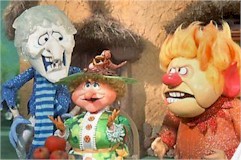
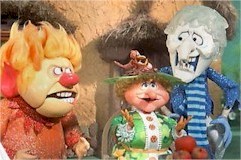
Each of these Columns has Five Layers above the main page's blue background color and background image snowflakes
Column One has:
- 1. The Red Background Color for the Row that holds the Columns.
- 2. The Fire Background Image for the Row.
- 3. An Aqua Blue Background Color For the Column
- 4. The redsnowflake.jpg background image
- 5. The Final Top Layer with Text and Images

Column One has:
- 1. The Red Background Color for the Row that holds the Columns.
- 2. The Fire Background Image for the Row.
- 3. An Aqua Blue Background Color For the Column
- 4. The redsnowflake.jpg background image
- 5. The Final Top Layer with Text and Images
Column Two has:
- 1. The Red Background Color for the Row that holds the Columns.
- 2. The Fire Background Image for the Row.
- 3. An Aqua Blue Background Color For the Column
- 4. A Transparent redsnowflake.png background image
(Only the red snowflake shows)
- 5. The Final Top Layer with Text and Images
NOTE: If you want to use a background image in combination with a background color, the image needs to be a transparent .png file. This means that the white area surrounding Column One's redsnowflake.jpg is removed allowing for a cleaner display.
The .jpg file format does not support a transparency option.
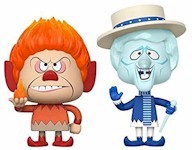
- 1. The Red Background Color for the Row that holds the Columns.
- 2. The Fire Background Image for the Row.
- 3. An Aqua Blue Background Color For the Column
- 4. A Transparent redsnowflake.png background image
(Only the red snowflake shows)
- 5. The Final Top Layer with Text and Images
NOTE: If you want to use a background image in combination with a background color, the image needs to be a transparent .png file. This means that the white area surrounding Column One's redsnowflake.jpg is removed allowing for a cleaner display.
The .jpg file format does not support a transparency option.
Column Three has:
- 1. The Red Background Color for the Row that holds the Columns.
- 2. The Fire Background Image for the Row.
- 3. An Aqua Blue Background Color For the Column
- 4. A smaller transparent redsnowflake.png background image
(The smaller redsnowflake.png is being repeated to fill the page)
- 5. The Final Top Layer with Text and Images
NOTE: This Column is set Opacity: 0.5; equating to 50% Transparency - The Opacity affects EVERYTHING within this Column, including the text and any images or graphics.

- 1. The Red Background Color for the Row that holds the Columns.
- 2. The Fire Background Image for the Row.
- 3. An Aqua Blue Background Color For the Column
- 4. A smaller transparent redsnowflake.png background image
(The smaller redsnowflake.png is being repeated to fill the page)
- 5. The Final Top Layer with Text and Images
NOTE: This Column is set Opacity: 0.5; equating to 50% Transparency - The Opacity affects EVERYTHING within this Column, including the text and any images or graphics.